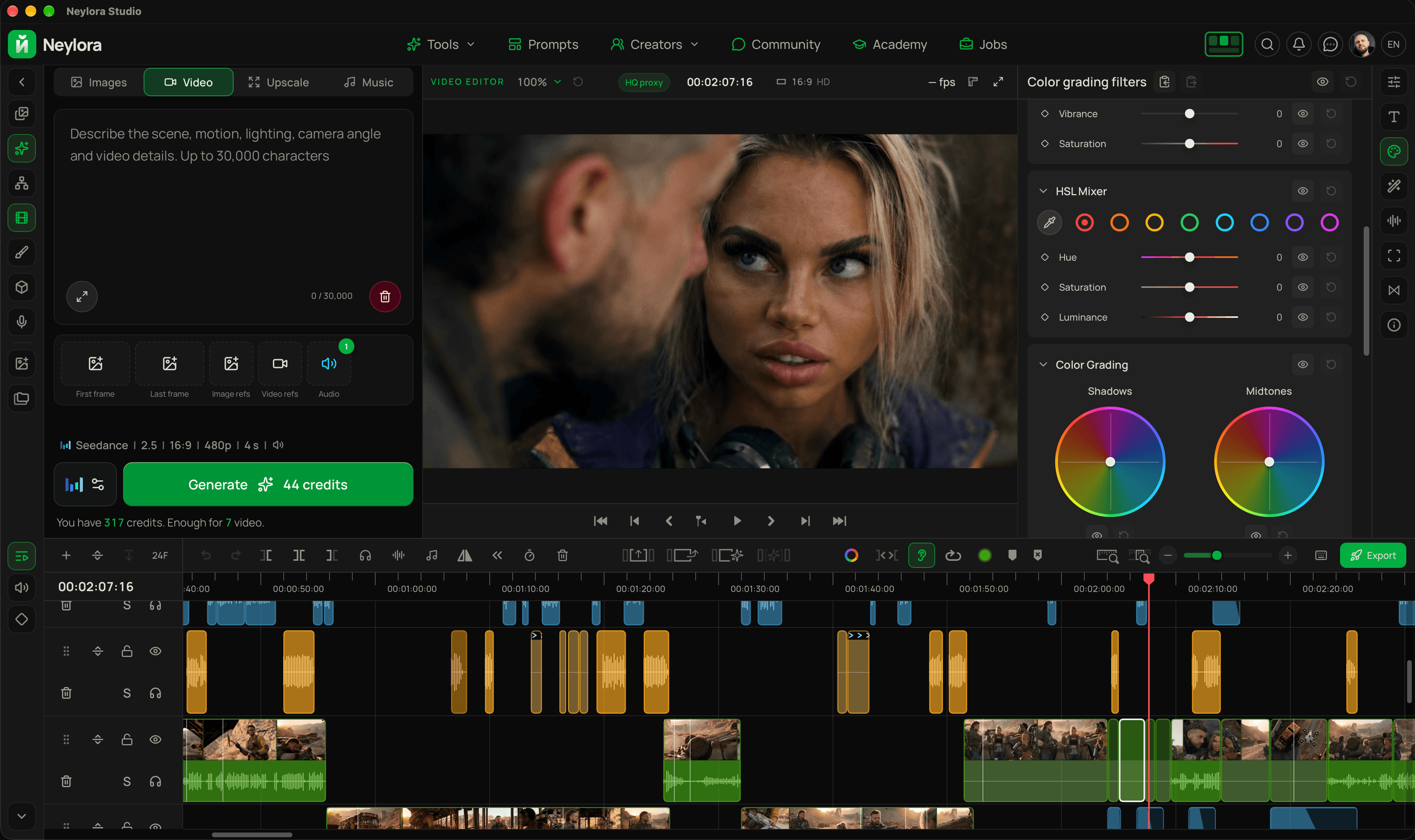
Alle Werkzeuge sind in der Desktop-Version verfügbar.
Der Agent hilft dir, mit integrierten, auf jedes Modell abgestimmten Fähigkeiten passende Prompts zu schreiben.
Jetzt loslegen neylora.ai/generate
Volle Kontrolle über Kamera- und Objektbewegungen für deine Generierungen.
Keine separate 3D-Software nötig — in Neylora ist alles kostenlos verfügbar.
Der Agent erstellt aus einem Bild oder einer Beschreibung eine 3D-Szene, die du im Videogenerator als Bewegungsreferenz verwenden kannst.
Jetzt loslegen neylora.ai/generate/scene-3d
Videos generieren, die Timeline bearbeiten und Farbkorrektur sowie Effekte hinzufügen — alles an einem Ort.
Kostenlose App fürWindowsundmacOS

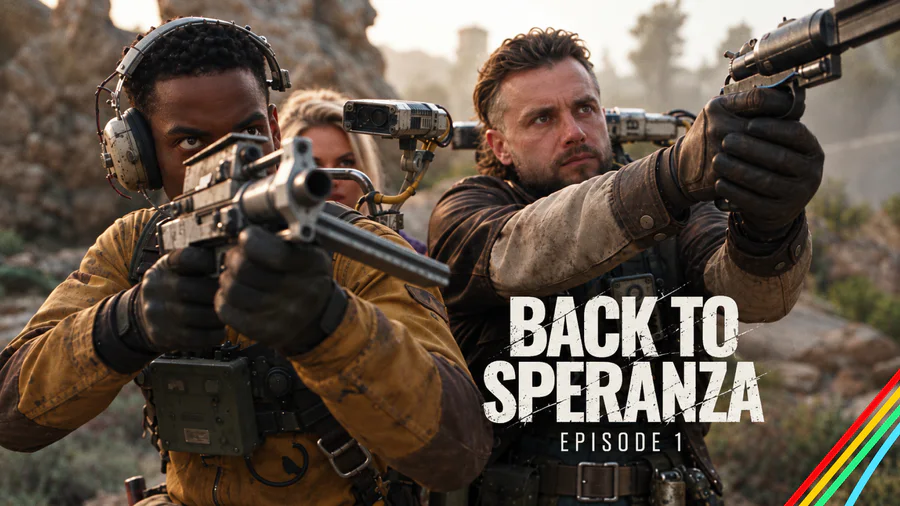
Erstelle filmische KI-Videos mit präziser kreativer Kontrolle und realistischen Bewegungen.
Neylora lässt sich auch ohne Abo mit gekauften Credits nutzen. Abos bieten günstigere Preise.

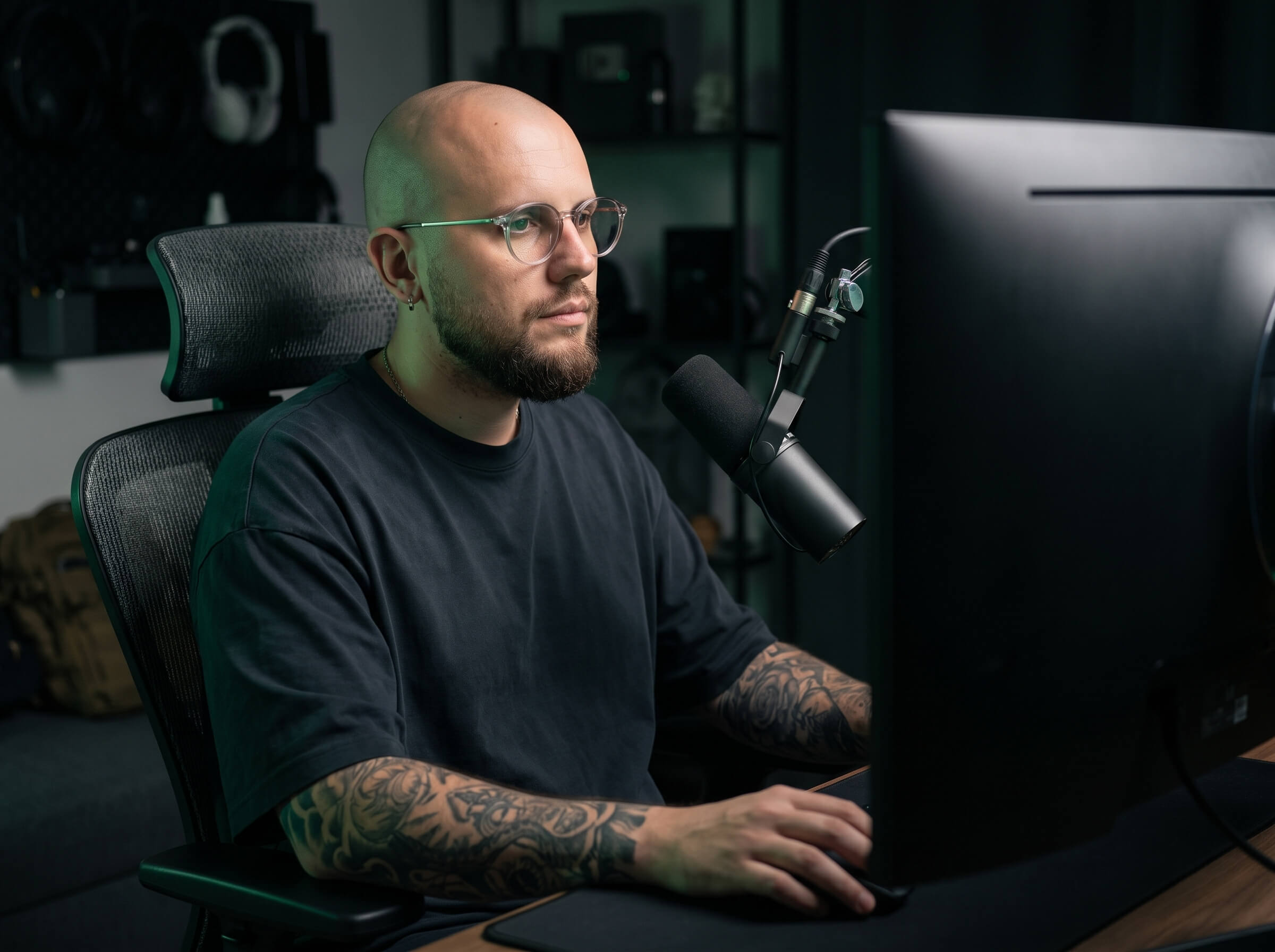
Ich heiße Dmitry Pelipas. Seit über 20 Jahren arbeite ich mit Grafik, Animation und Video. Heute erstelle ich Filme und andere Inhalte mithilfe künstlicher Intelligenz, und meine Arbeiten erreichen Millionen von Aufrufen.
Neylora entstand aus meinen eigenen Bedürfnissen. Ich brauchte ein praktisches Werkzeug, das moderne KI-Modelle an einem Ort vereint, ohne unnötige Komplexität und Einschränkungen.
Ich nutze Neylora jeden Tag, setze damit neue Projekte um, experimentiere und verbessere es ständig.
Denn der beste Weg, ein wirklich gutes Werkzeug zu entwickeln, ist, es selbst zu nutzen.
Von einem Kreativen entwickelt. Für alle, die etwas erschaffen wollen.
Präsentiere deine besten Arbeiten und vernetze dich mit anderen Kreativen.Baue deinen Ruf auf, werde entdeckt und erreiche potenzielle Kunden.Das ist kostenlos.
yourname.neylora.ai
Mehr erfahrenRussisches Original · Übersetzung noch nicht verfügbar
Создавайте видео по тексту, оживляйте изображения и управляйте развитием сцены с помощью ключевых кадров.
Что умеет Kling 4:
Чтобы собрать последовательность из картинок, включите «Использовать референсы как ключевые кадры». Изображения будут использованы по порядку: первое, промежуточные и последнее. В этом режиме видео-референсы не используются.
Kling 4 станет версией по умолчанию. Kling 3 останется рядом — переключайтесь между 3 и 4 прямо в настройках модели.
попробовать https://neylora.ru/generate/video/kling
Text-to-image and video generation have a limitation: words alone make it hard to specify exactly where the camera should be and how objects should relate to one another. “A little lower,” “closer to the foreground,” or “the car at an angle to the building” can be interpreted differently every time.
With 3D Animatic, you can position the camera and objects yourself, preview the composition in the viewport, and prepare a visual reference with the framing and movement you want.
Choose a viewpoint, adjust the field of view, change the distances between objects, and check exactly what fits in the frame. If the shot needs motion, set it up on the timeline and play it back.
Start with an empty scene, a text prompt, or an image. The built-in AI agent helps block out a scene using simple shapes: a room, a street with cars, a courtyard, a natural environment, or a product composition.
Attach a reference and describe the task. The agent will approximate the main shapes and object placement. You can watch the scene take shape gradually in the viewport.
You do not need a detailed model of every object. Recognizable silhouettes, suitable proportions, and the right distances are enough to help plan the shot.
Once the scene is built, you can manually move, rotate, scale, or recolor any object. Bring a car closer to the camera, turn a table, increase the gap between buildings, or remove an object that blocks an important part of the frame.
You can also ask the agent to make changes:
After you send a reference, it remains in the chat history and stays in context for subsequent edits. Upload an image from your device or drag one into the chat from Neylora's mini-gallery.
You can stop the agent while it is building, and undo its changes with a single Undo.
The camera is central to the animatic workflow. Choose its position and viewing direction, adjust the field of view, and evaluate the composition through the camera view.
Check how a low viewpoint changes the shot, how large an object appears, what sits in the foreground, and how objects overlap.
Instead of repeatedly trying to explain an angle in words, you have a scene in which you can set the composition directly.
A keyframe timeline lets you set objects and the camera in motion. Define their starting positions, intermediate points, and final positions over time.
Plan a camera move along a street, a push-in toward a subject, a moving car, or an object emerging from behind an obstacle.
Play the animation to check timing and how the elements move in relation to one another. Visible motion paths help you inspect an object's route through the scene and adjust it.
This is especially useful when you need to establish where the camera starts, where it ends, and where the objects should be relative to it.
Beyond positioning ready-made shapes, you have modeling tools for working with faces and edges, including loop cuts, extrusion, inset, and bevel.
Use them to adjust a shape's silhouette or build a specific structure, such as a wall with an opening. Block out the scene quickly with the agent, then manually refine the geometry that affects the shot.
Group timeline objects into folders, reorder them, and hide or lock them. Keeping the environment separate from moving objects helps keep the workspace manageable.
Collapsed folders display keyframe markers for their contents, so you can see where animation occurs without expanding every track.
Projects are saved in Neylora folders. Within a project, you can create multiple scenes to explore different camera setups and object arrangements. Export the finished animation as a video directly to your reference library.
When reconstructing a space from a single image, dimensions and hidden areas are only approximate. Review the result and adjust it where necessary. Simple geometry helps you focus on what matters: camera placement, composition, and object movement.
You can now refine an image right where you generated it. Open an image from your gallery or upload one from your computer.
Create collages, add text and shapes, draw, rotate and flip objects, and adjust opacity and layer order—all on a single canvas.
For AI editing, describe what you want to change. Without a mask, your instructions apply to the whole image; use the brush to mark a specific area. Arrows and shapes can help show where and how to make the edit. You can also add reference images and compare the result with the original.
In the free Neylora Studio app, the editor also supports filters, color correction and effects—for a selected image or all images on the canvas.
Kostenlos(ohne Abo)
200 Credits, einmalig
Reicht für:
Video 720p · MiniMax 768p
Start
440 Credits / Monat
Reicht für:
Video 720p · MiniMax 768p
Creator
1.900 Credits / Monat
Reicht für:
Video 720p · MiniMax 768p
Pro
5.600 Credits / Monat
Reicht für:
Video 720p · MiniMax 768p
Premium
9.600 Credits / Monat
Reicht für:
Video 720p · MiniMax 768p

Build stronger Midjourney prompts for cinematic stills and realistic images. Learn the prompt structure, key parameters, reference types and version-specific workflows for consistent characters and visual styles.
Lesen Sie mehr
A practical guide to Grok Imagine 1.5 video prompts: animate a starting frame, direct the camera, plan sound, and build multi-angle scenes with separate clips.
Lesen Sie mehr
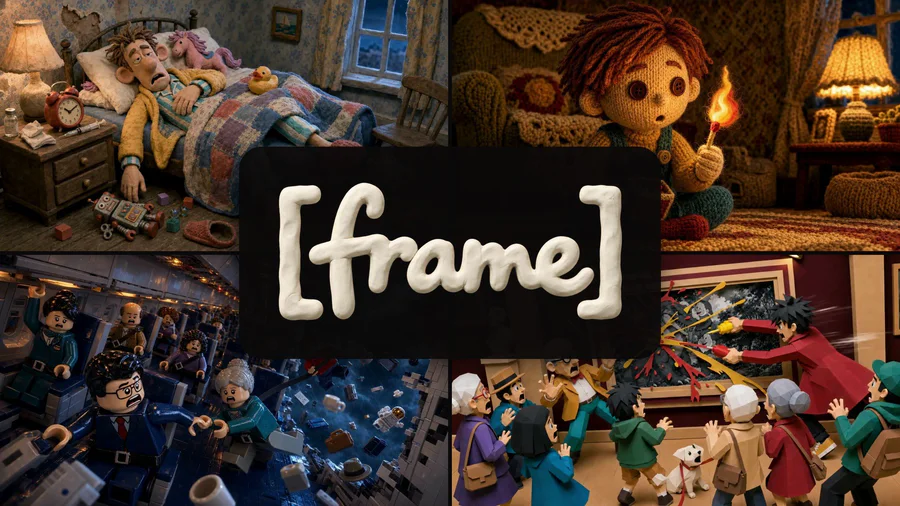
A practical guide for AI filmmakers: structure cinematic prompts, plan multiple shots in a single generation, keep characters consistent, and separate useful techniques from prompting myths.
Lesen Sie mehr