
Neylora - la plateforme des créateurs IA. De l’idée au montage au même endroit

Tous les outils sont disponibles dans la version pour ordinateur.

Générateur avec agent IA

L’agent vous aide à rédiger des prompts efficaces grâce à des compétences intégrées adaptées à chaque modèle.

Nano-bananaNano Banana SeedreamSeedream GPT Image Midjourney SeedanceSeedance Kling VEOVeo Grok Minimax-HailuoMiniMax WanWan

Commencer à créer neylora.ai/generate

Animatique 3D

Contrôlez entièrement la caméra et les mouvements des objets pour vos générations.
Plus besoin de logiciel 3D séparé : tout est disponible gratuitement dans Neylora.

L’agent crée une scène 3D à partir d’une image ou d’une description, que vous pouvez utiliser comme référence de mouvement dans le générateur vidéo.

Commencer à créer neylora.ai/generate/scene-3d

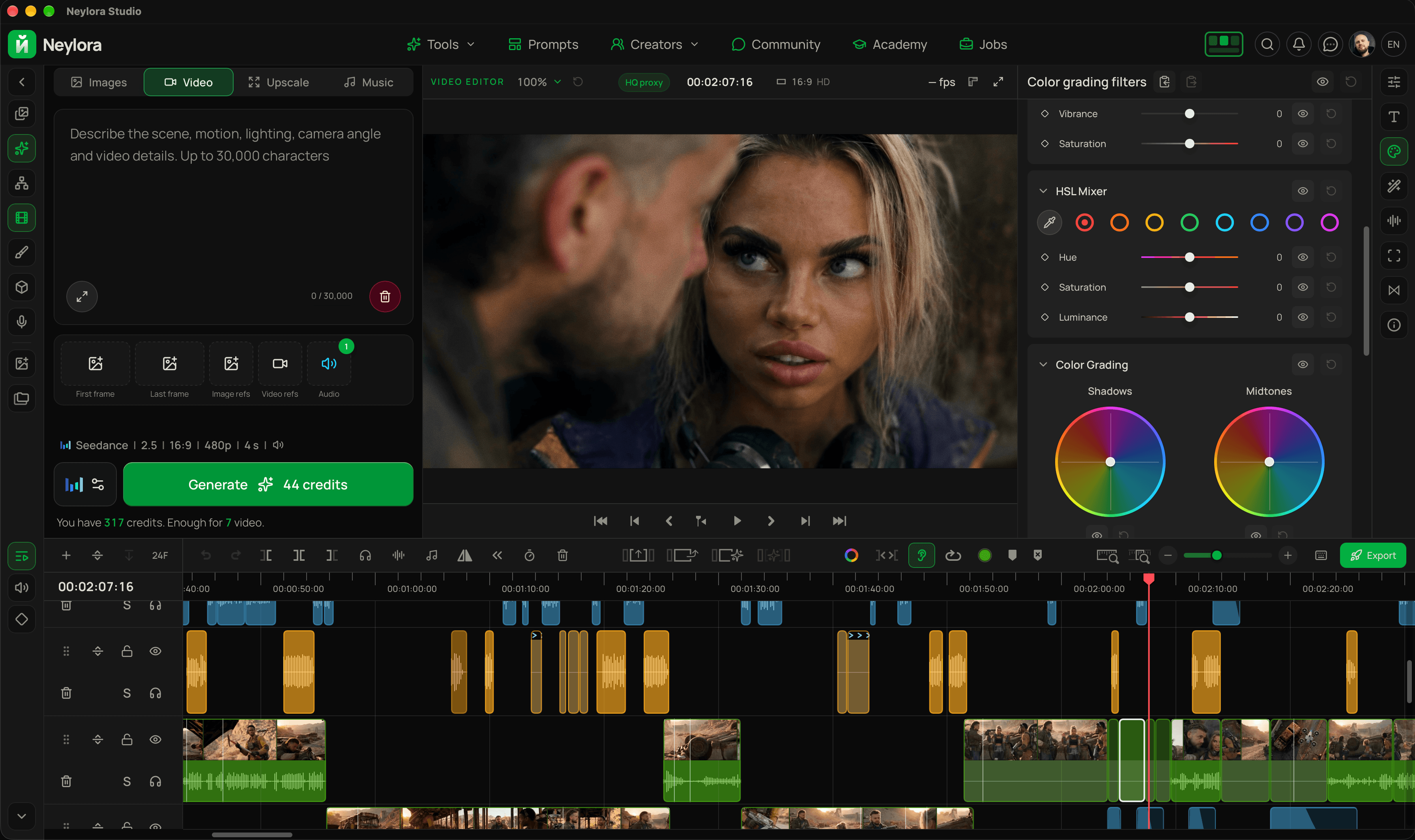
Générez et montez dans une seule application

Générez des vidéos, montez sur la timeline et ajoutez étalonnage et effets au même endroit.

Application gratuite pourWindowsetmacOS

Génération IA et montage vidéo dans Neylora Studio

Portfoliopour les créateurs IA

Présentez vos meilleures créations et échangez avec d’autres créateurs.Développez votre réputation, gagnez en visibilité et touchez de futurs clients.C’est gratuit.

yourname.neylora.ai

En savoir plus

Génération vidéo par IA

Créez des vidéos IA cinématographiques avec un contrôle créatif précis et des mouvements réalistes.

Tarifs

Vous pouvez utiliser Neylora sans abonnement en achetant des crédits. Les abonnements offrent de meilleurs tarifs.

Gratuit(sans abonnement)

200 crédits, achat unique

$61 crédit = $ 0.03Sans expiration

Permet de créer :

Nano Banana 2.1100
Nano Banana Pro66
GPT Image 2.5100
Seedance 2.510 s
Seedance 2 Fast20 s
Wan 3 Pro25 s
MiniMax H350 s
Kling 328 s
Grok Video66 s

Vidéo 720p · MiniMax 768p

Start

440 crédits / mois

$11/mois1 crédit = $ 0.025

Permet de créer :

Nano Banana 2.1220
Nano Banana Pro146
GPT Image 2.5220
Seedance 2.522 s
Seedance 2 Fast44 s
Wan 3 Pro55 s
MiniMax H3110 s
Kling 362 s
Grok Video146 s

Vidéo 720p · MiniMax 768p

Creator

1 900 crédits / mois

$39/mois1 crédit = $ 0.021

Permet de créer :

Nano Banana 2.1950
Nano Banana Pro633
GPT Image 2.5950
Seedance 2.595 s
Seedance 2 Fast190 s
Wan 3 Pro237 s
MiniMax H3475 s
Kling 3271 s
Grok Video633 s

Vidéo 720p · MiniMax 768p

Pro

5 600 crédits / mois

$99/mois1 crédit = $ 0.018

Permet de créer :

Nano Banana 2.12 800
Nano Banana Pro1 866
GPT Image 2.52 800
Seedance 2.5280 s
Seedance 2 Fast560 s
Wan 3 Pro700 s
MiniMax H31 400 s
Kling 3800 s
Grok Video1 866 s

Vidéo 720p · MiniMax 768p

Premium

9 600 crédits / mois

$149/mois1 crédit = $ 0.016

Permet de créer :

Nano Banana 2.14 800
Nano Banana Pro3 200
GPT Image 2.54 800
Seedance 2.5480 s
Seedance 2 Fast960 s
Wan 3 Pro1 200 s
MiniMax H32 400 s
Kling 31 371 s
Grok Video3 200 s

Vidéo 720p · MiniMax 768p

Facturation transparente

Paiements internationaux — bientôt disponibles

@pelipasDmitry Pelipas

Neylora/

3D Animatic in Neylora: take control of your camera and scene

Text-to-image and video generation have a limitation: words alone make it hard to specify exactly where the camera should be and how objects should relate to one another. “A little lower,” “closer to the foreground,” or “the car at an angle to the building” can be interpreted differently every time.

With 3D Animatic, you can position the camera and objects yourself, preview the composition in the viewport, and prepare a visual reference with the framing and movement you want.

Choose a viewpoint, adjust the field of view, change the distances between objects, and check exactly what fits in the frame. If the shot needs motion, set it up on the timeline and play it back.

Build a scene from a description or an image

Start with an empty scene, a text prompt, or an image. The built-in AI agent helps block out a scene using simple shapes: a room, a street with cars, a courtyard, a natural environment, or a product composition.

Attach a reference and describe the task. The agent will approximate the main shapes and object placement. You can watch the scene take shape gradually in the viewport.

You do not need a detailed model of every object. Recognizable silhouettes, suitable proportions, and the right distances are enough to help plan the shot.

Position objects exactly where you need them

Once the scene is built, you can manually move, rotate, scale, or recolor any object. Bring a car closer to the camera, turn a table, increase the gap between buildings, or remove an object that blocks an important part of the frame.

You can also ask the agent to make changes:

  • “Move the car to the right and keep the center of the frame clear.”
  • “Turn the sofa toward the window.”
  • “Place the trees farther from the camera.”
  • “Remove the front wall.”
  • “Make the passage between the objects wider.”

After you send a reference, it remains in the chat history and stays in context for subsequent edits. Upload an image from your device or drag one into the chat from Neylora's mini-gallery.

You can stop the agent while it is building, and undo its changes with a single Undo.

Set the camera for your shot

The camera is central to the animatic workflow. Choose its position and viewing direction, adjust the field of view, and evaluate the composition through the camera view.

Check how a low viewpoint changes the shot, how large an object appears, what sits in the foreground, and how objects overlap.

Instead of repeatedly trying to explain an angle in words, you have a scene in which you can set the composition directly.

Animate the camera and objects

A keyframe timeline lets you set objects and the camera in motion. Define their starting positions, intermediate points, and final positions over time.

Plan a camera move along a street, a push-in toward a subject, a moving car, or an object emerging from behind an obstacle.

Play the animation to check timing and how the elements move in relation to one another. Visible motion paths help you inspect an object's route through the scene and adjust it.

This is especially useful when you need to establish where the camera starts, where it ends, and where the objects should be relative to it.

Refine the geometry when needed

Beyond positioning ready-made shapes, you have modeling tools for working with faces and edges, including loop cuts, extrusion, inset, and bevel.

Use them to adjust a shape's silhouette or build a specific structure, such as a wall with an opening. Block out the scene quickly with the agent, then manually refine the geometry that affects the shot.

Organize the scene and save the result

Group timeline objects into folders, reorder them, and hide or lock them. Keeping the environment separate from moving objects helps keep the workspace manageable.

Collapsed folders display keyframe markers for their contents, so you can see where animation occurs without expanding every track.

Projects are saved in Neylora folders. Within a project, you can create multiple scenes to explore different camera setups and object arrangements. Export the finished animation as a video directly to your reference library.

When reconstructing a space from a single image, dimensions and hidden areas are only approximate. Review the result and adjust it where necessary. Simple geometry helps you focus on what matters: camera placement, composition, and object movement.
Try 3D Animatic for free

Lire la suite
0
15vues

@pelipasDmitry Pelipas

Neylora/

Remove music from your videos in Neylora Studio

Your generated video looks just right—except for the background music getting in the way of your edit? You can now remove it directly in Studio while keeping speech and sound effects.

The new Remove music tool works with video clips and standalone audio clips, including audio you have already detached from a video.

Two processing modes

  • Remove music isolates the music and subtracts it from the original audio. You get a single No music track containing speech and effects.
  • Split into three tracks creates separate tracks for voice, sound effects and music. This mode usually provides cleaner separation and more flexibility when editing. The music track is added muted.

Results depend on the clip: the sounds it contains, how loud the music is and how closely it overlaps with speech. Try both modes to see which works best for your footage.

Ready to edit, right on your timeline

The processed tracks are added separately, and the original audio is muted. The clip's trim, position and speed are preserved, so you do not need to sync the audio to the video again.

The resulting WAV files also appear under Files on PC. Their names include the source filename, making it easier to identify the voice or music-free version. You can reuse them in the project or take them into another editor.

Studio processes the source's full audio, so you can keep adjusting the clip boundaries after separation. Adding an already saved result again does not incur another processing charge.

Try it out

Select a clip and click the music-note icon in the toolbar, or choose Remove music from its right-click menu. Pick a mode, check the credit cost and start processing. You can follow the progress, or hide the window and carry on editing.

There is also a headphones button in the toolbar to quickly mute or unmute selected clips. The keyboard shortcut is M.

Open Neylora Studio

Lire la suite
0
2vues

Académie Neylora

Des tutoriels gratuits pour créer des images et des vidéos avec l’IA.

Tous les tutoriels
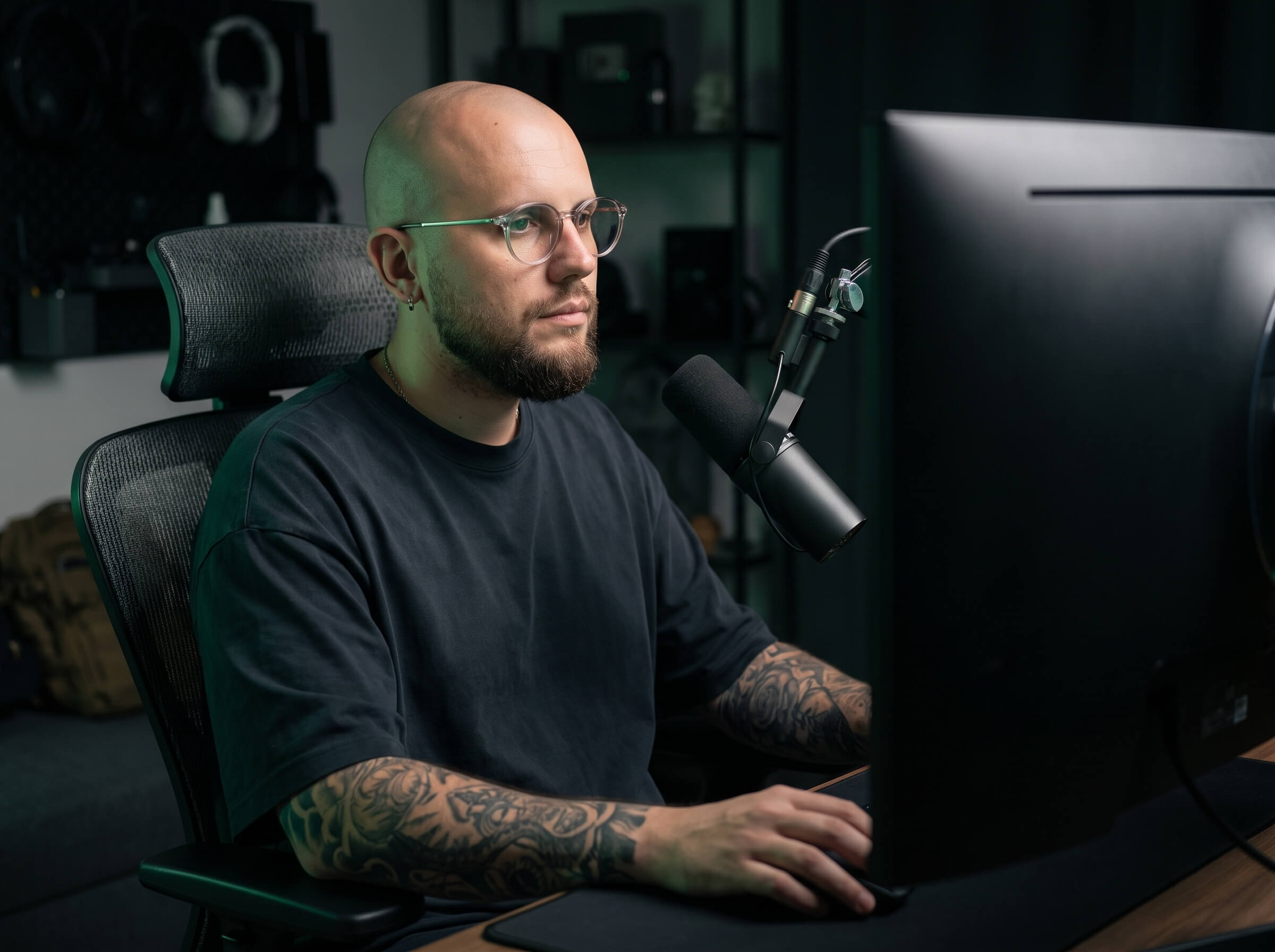
Dmitry Pelipas, créateur de Neylora, au travail dans son studio

J’ai créé Neylora pour moi. Aujourd’hui, vous pouvez aussi en profiter.

Je m’appelle Dmitry Pelipas. Je travaille dans le graphisme, l’animation et la vidéo depuis plus de 20 ans. Aujourd’hui, je crée des films et d’autres contenus grâce à l’intelligence artificielle, et mes créations cumulent des millions de vues.

Neylora est née de mes propres besoins. Je cherchais un outil pratique réunissant les modèles d’IA modernes au même endroit, sans complications ni restrictions inutiles.

J’utilise moi-même Neylora chaque jour pour créer de nouveaux projets, expérimenter et l’améliorer en permanence.

Parce que la meilleure façon de créer un très bon outil, c’est de l’utiliser soi-même.

Créé par un créateur. Pour tous ceux qui veulent créer.