
Neylora - platforma dla twórców AI. Od pomysłu po montaż w jednym miejscu

Pełny zestaw narzędzi jest dostępny w wersji komputerowej.

Generator z agentem AI

Agent pomaga pisać skuteczne prompty dzięki wbudowanym umiejętnościom dostosowanym do każdego modelu.

Nano-bananaNano Banana SeedreamSeedream GPT Image Midjourney SeedanceSeedance Kling VEOVeo Grok Minimax-HailuoMiniMax WanWan

Zacznij tworzyć neylora.ai/generate

Animacja 3D

Pełna kontrola nad kamerą i ruchem obiektów w generowanych materiałach.
Nie potrzebujesz już osobnego programu 3D — wszystko jest dostępne w Neylorze za darmo.

Agent tworzy scenę 3D na podstawie obrazu lub opisu. Możesz jej użyć jako referencji ruchu w generatorze wideo.

Generuj i edytuj w jednej aplikacji

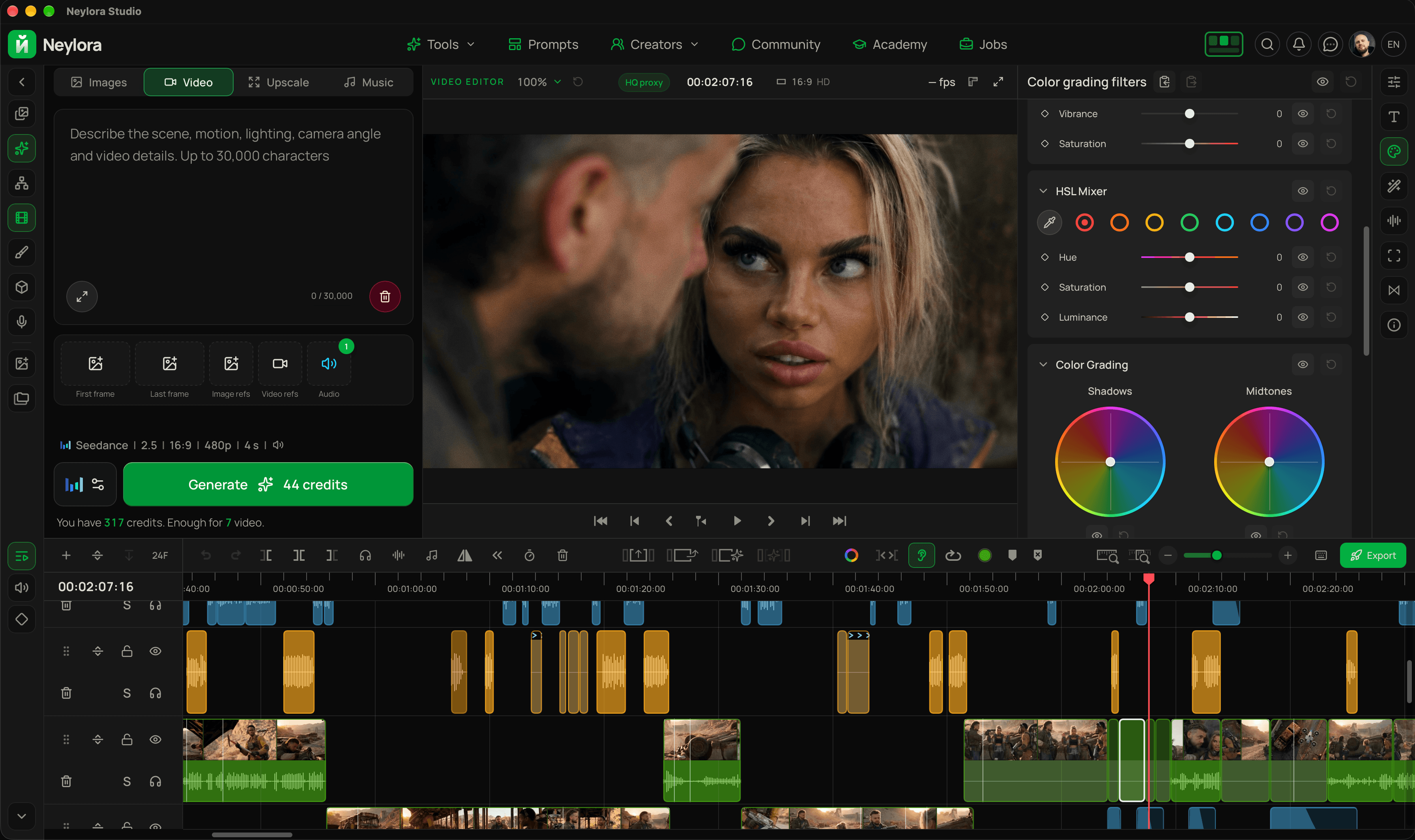
Generuj filmy, edytuj oś czasu i dodawaj gradację kolorów i efekty w jednym miejscu.

Darmowa aplikacja dlaWindowsimacOS

Generowanie AI i edycja wideo w Neylora Studio

Portfoliodla twórców korzystających z AI

Zaprezentuj swoje najlepsze prace i nawiąż kontakt z innymi twórcami.Buduj swoją reputację, wyróżnij się i dotrzyj do potencjalnych klientów.To nic nie kosztuje.

yourname.neylora.ai

Dowiedz się więcej

Generowanie wideo AI

Twórz kinowe filmy AI z precyzyjną kontrolą twórczą i realistycznym ruchem.

Wycena

Możesz używać Neylora bez subskrypcji, kupując kredyty. Subskrypcje oferują lepsze stawki.

Bezpłatny(bez subskrypcji)

200 kredytów jednorazowo

$61 kredyt = $ 0.03Nie wygasają

Wystarczy na:

Nano Banana 2.1100
Nano Banana Pro66
GPT Image 2.5100
Seedance 2.510 sek
Seedance 2 Fast20 sek
Wan 3 Pro25 sek
MiniMax H350 sek
Kling 328 sek
Grok Video66 sek

Wideo 720p · MiniMax 768p

Start

440 kredytów / miesiąc

$11/mies1 kredyt = $ 0.025

Wystarczy na:

Nano Banana 2.1220
Nano Banana Pro146
GPT Image 2.5220
Seedance 2.522 sek
Seedance 2 Fast44 sek
Wan 3 Pro55 sek
MiniMax H3110 sek
Kling 362 sek
Grok Video146 sek

Wideo 720p · MiniMax 768p

Creator

1900 kredytów / miesiąc

$39/mies1 kredyt = $ 0.021

Wystarczy na:

Nano Banana 2.1950
Nano Banana Pro633
GPT Image 2.5950
Seedance 2.595 sek
Seedance 2 Fast190 sek
Wan 3 Pro237 sek
MiniMax H3475 sek
Kling 3271 sek
Grok Video633 sek

Wideo 720p · MiniMax 768p

Pro

5600 kredytów / miesiąc

$99/mies1 kredyt = $ 0.018

Wystarczy na:

Nano Banana 2.12800
Nano Banana Pro1866
GPT Image 2.52800
Seedance 2.5280 sek
Seedance 2 Fast560 sek
Wan 3 Pro700 sek
MiniMax H31400 sek
Kling 3800 sek
Grok Video1866 sek

Wideo 720p · MiniMax 768p

Premium

9600 kredytów / miesiąc

$149/mies1 kredyt = $ 0.016

Wystarczy na:

Nano Banana 2.14800
Nano Banana Pro3200
GPT Image 2.54800
Seedance 2.5480 sek
Seedance 2 Fast960 sek
Wan 3 Pro1200 sek
MiniMax H32400 sek
Kling 31371 sek
Grok Video3200 sek

Wideo 720p · MiniMax 768p

Przejrzyste rozliczenia

Płatności na całym świecie — już wkrótce

@pelipasDmitry Pelipas

Neylora/

3D Animatic in Neylora: take control of your camera and scene

Text-to-image and video generation have a limitation: words alone make it hard to specify exactly where the camera should be and how objects should relate to one another. “A little lower,” “closer to the foreground,” or “the car at an angle to the building” can be interpreted differently every time.

With 3D Animatic, you can position the camera and objects yourself, preview the composition in the viewport, and prepare a visual reference with the framing and movement you want.

Choose a viewpoint, adjust the field of view, change the distances between objects, and check exactly what fits in the frame. If the shot needs motion, set it up on the timeline and play it back.

Build a scene from a description or an image

Start with an empty scene, a text prompt, or an image. The built-in AI agent helps block out a scene using simple shapes: a room, a street with cars, a courtyard, a natural environment, or a product composition.

Attach a reference and describe the task. The agent will approximate the main shapes and object placement. You can watch the scene take shape gradually in the viewport.

You do not need a detailed model of every object. Recognizable silhouettes, suitable proportions, and the right distances are enough to help plan the shot.

Position objects exactly where you need them

Once the scene is built, you can manually move, rotate, scale, or recolor any object. Bring a car closer to the camera, turn a table, increase the gap between buildings, or remove an object that blocks an important part of the frame.

You can also ask the agent to make changes:

  • “Move the car to the right and keep the center of the frame clear.”
  • “Turn the sofa toward the window.”
  • “Place the trees farther from the camera.”
  • “Remove the front wall.”
  • “Make the passage between the objects wider.”

After you send a reference, it remains in the chat history and stays in context for subsequent edits. Upload an image from your device or drag one into the chat from Neylora's mini-gallery.

You can stop the agent while it is building, and undo its changes with a single Undo.

Set the camera for your shot

The camera is central to the animatic workflow. Choose its position and viewing direction, adjust the field of view, and evaluate the composition through the camera view.

Check how a low viewpoint changes the shot, how large an object appears, what sits in the foreground, and how objects overlap.

Instead of repeatedly trying to explain an angle in words, you have a scene in which you can set the composition directly.

Animate the camera and objects

A keyframe timeline lets you set objects and the camera in motion. Define their starting positions, intermediate points, and final positions over time.

Plan a camera move along a street, a push-in toward a subject, a moving car, or an object emerging from behind an obstacle.

Play the animation to check timing and how the elements move in relation to one another. Visible motion paths help you inspect an object's route through the scene and adjust it.

This is especially useful when you need to establish where the camera starts, where it ends, and where the objects should be relative to it.

Refine the geometry when needed

Beyond positioning ready-made shapes, you have modeling tools for working with faces and edges, including loop cuts, extrusion, inset, and bevel.

Use them to adjust a shape's silhouette or build a specific structure, such as a wall with an opening. Block out the scene quickly with the agent, then manually refine the geometry that affects the shot.

Organize the scene and save the result

Group timeline objects into folders, reorder them, and hide or lock them. Keeping the environment separate from moving objects helps keep the workspace manageable.

Collapsed folders display keyframe markers for their contents, so you can see where animation occurs without expanding every track.

Projects are saved in Neylora folders. Within a project, you can create multiple scenes to explore different camera setups and object arrangements. Export the finished animation as a video directly to your reference library.

When reconstructing a space from a single image, dimensions and hidden areas are only approximate. Review the result and adjust it where necessary. Simple geometry helps you focus on what matters: camera placement, composition, and object movement.
Try 3D Animatic for free

Przeczytaj więcej
0
15widoki

@pelipasDmitry Pelipas

Neylora/

Remove music from your videos in Neylora Studio

Your generated video looks just right—except for the background music getting in the way of your edit? You can now remove it directly in Studio while keeping speech and sound effects.

The new Remove music tool works with video clips and standalone audio clips, including audio you have already detached from a video.

Two processing modes

  • Remove music isolates the music and subtracts it from the original audio. You get a single No music track containing speech and effects.
  • Split into three tracks creates separate tracks for voice, sound effects and music. This mode usually provides cleaner separation and more flexibility when editing. The music track is added muted.

Results depend on the clip: the sounds it contains, how loud the music is and how closely it overlaps with speech. Try both modes to see which works best for your footage.

Ready to edit, right on your timeline

The processed tracks are added separately, and the original audio is muted. The clip's trim, position and speed are preserved, so you do not need to sync the audio to the video again.

The resulting WAV files also appear under Files on PC. Their names include the source filename, making it easier to identify the voice or music-free version. You can reuse them in the project or take them into another editor.

Studio processes the source's full audio, so you can keep adjusting the clip boundaries after separation. Adding an already saved result again does not incur another processing charge.

Try it out

Select a clip and click the music-note icon in the toolbar, or choose Remove music from its right-click menu. Pick a mode, check the credit cost and start processing. You can follow the progress, or hide the window and carry on editing.

There is also a headphones button in the toolbar to quickly mute or unmute selected clips. The keyboard shortcut is M.

Open Neylora Studio

Przeczytaj więcej
0
2widoki

Neylora Academy

Darmowe samouczki na temat tworzenia obrazów i filmów AI.

Wszystkie tutoriale
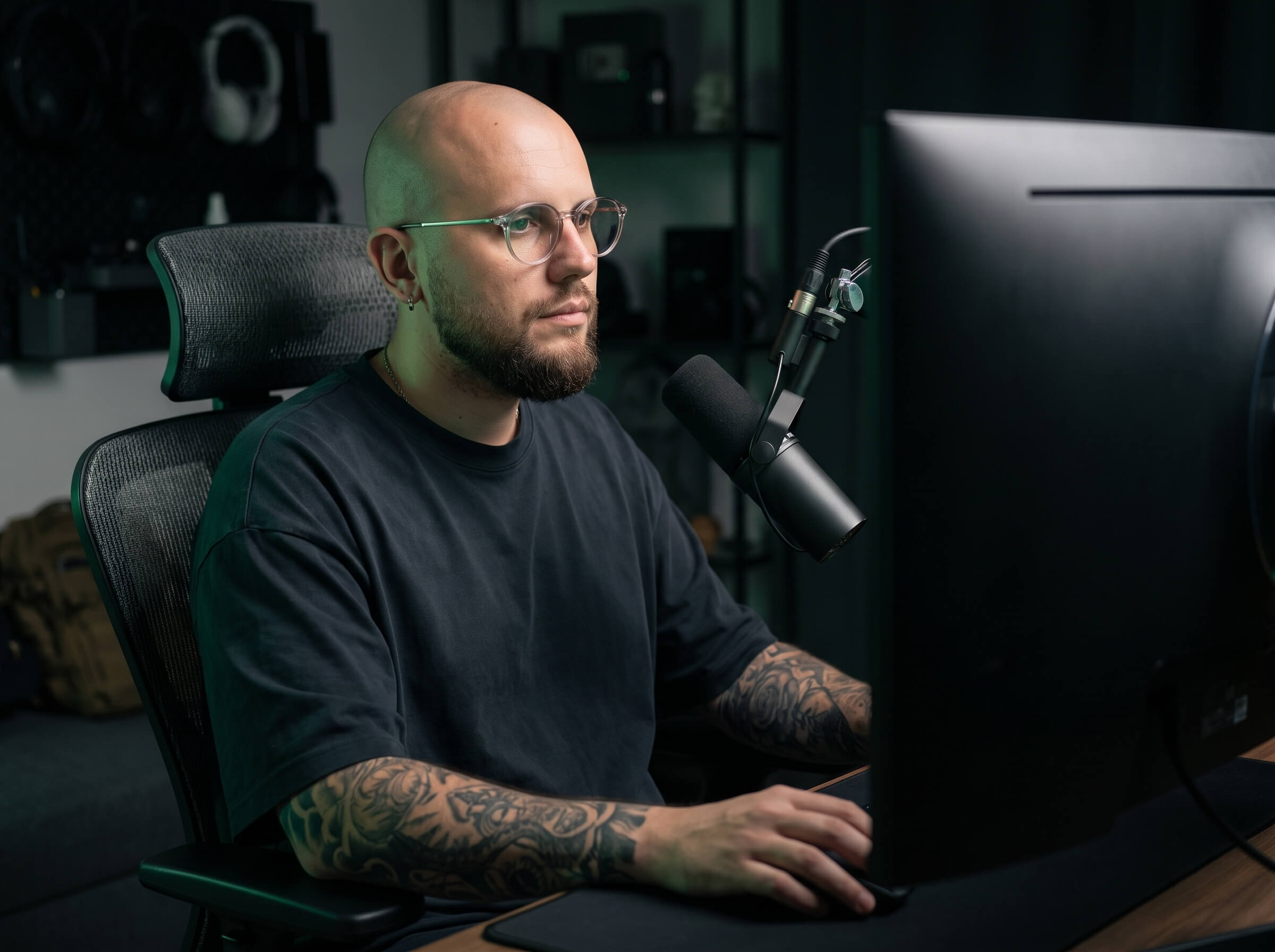
Dmitry Pelipas, twórca Neylory, przy pracy w swoim studiu

Stworzyłem Neylorę dla siebie. Teraz możesz z niej korzystać także ty.

Nazywam się Dmitry Pelipas. Od ponad 20 lat zajmuję się grafiką, animacją i wideo. Dziś tworzę filmy i inne treści za pomocą sztucznej inteligencji, a moje prace zdobywają miliony wyświetleń.

Neylora powstała z moich własnych potrzeb. Potrzebowałem wygodnego narzędzia, które łączy nowoczesne modele AI w jednym miejscu, bez zbędnych komplikacji i ograniczeń.

Sam korzystam z Neylory każdego dnia, tworzę z jej pomocą nowe projekty, eksperymentuję i stale ją udoskonalam.

Bo najlepszy sposób na stworzenie naprawdę dobrego narzędzia to samemu z niego korzystać.

Stworzone przez twórcę. Dla każdego, kto chce tworzyć.